
MP3 + SRT + cover → MP4
The MP3 is your narration. The matching SRT supplies the timing information for the chapter headings the app detects. Your cover gives the video its visual identity. There’s no need to split the audiobook into separate audio files first.
Audiobook to Video brings these together on Windows and renders the video on your computer. You then upload the MP4 to YouTube. YouTube accepts video files rather than an MP3 alone.
01 / Get your files
Have your MP3 and SRT ready.
Export the finished audiobook MP3 from ElevenLabs, then get the matching SRT for that recording. Keep your cover image handy too. These are the files you’ll use in the app.
For ElevenLabs’ audio export options, see its audiobook export documentation.
02 / Import the files
Load the MP3. Import the SRT.
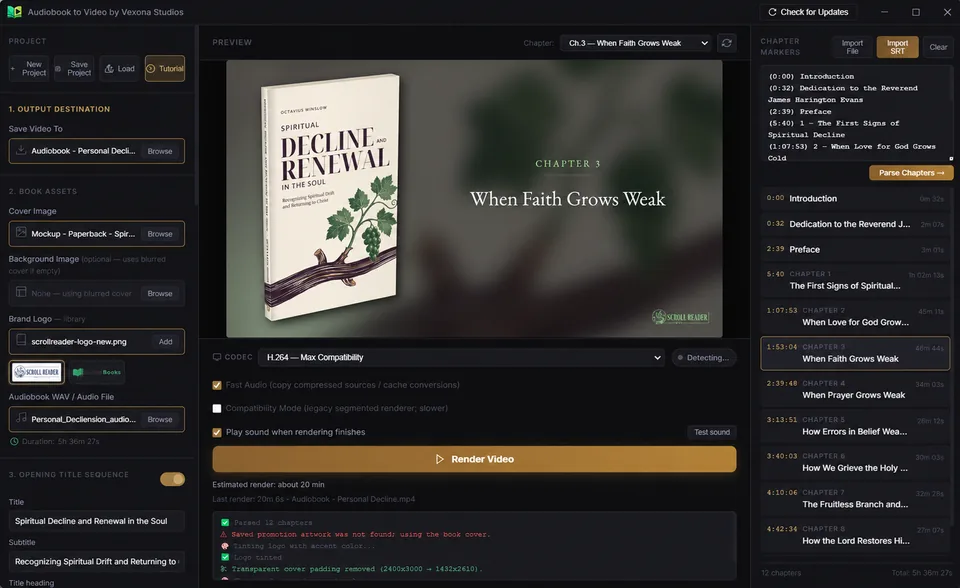
Open your MP3 under Book Assets. Select Import SRT and choose the matching subtitle file. The app reads the file and detects chapter headings and their timings for you. Review the imported chapters in the preview.
03 / Add your cover
Drop in your book cover.
Choose your cover image and check it in the preview. Background images, a brand logo, and an opening title sequence are optional extras—you can keep the presentation simple.
04 / Make the video
Render your MP4.
Choose where to save the video and select Render Video. The app combines your audio, cover, and chapter presentation into an MP4 on your computer. Play the finished file to check the result.
05 / Publish on your channel
Upload the MP4 to YouTube.
Upload the finished video through YouTube Studio, add its title and description, and choose when to publish. See YouTube’s upload instructions if this is your first upload.
Optional: add clickable chapters in YouTube
The chapter titles in your video and YouTube’s clickable timeline chapters are separate. To add clickable chapters, put timestamps and titles in the video description: start at 00:00, use at least three entries in order, and make each chapter at least ten seconds long. Your channel also needs access to the feature. See YouTube’s chapter requirements.
00:00 Introduction
01:20 Chapter 1 — A new beginning
08:45 Chapter 2 — The journey
These times are an example. Use the times in your exported video, including any opening sequence.
Before you start
A few practical answers.
Do I need to connect my ElevenLabs account?
No. This is a file-based workflow: export the audio, then open it in Audiobook to Video. There is no ElevenLabs account connection required by the app.
Will this work with other narration?
Yes. Compatible audio from another tool or your own recording can follow the same workflow. The app works with finished audio, rather than generating a voice.
Is the app available on Mac?
The available release is for 64-bit Windows. A macOS release is planned. Review the current app requirements and license before purchasing.
Does a video guarantee YouTube monetization?
No. The app creates a video file. Content rights, channel eligibility, and YouTube’s publishing and monetization decisions remain separate.