Adding a Sermon Manually
- Navigate to Sermons > Add New.
- Enter the sermon title and description.
- Use the media box to add a YouTube ID, self-hosted MP4, audio file, optional WebVTT captions, and duration.
- Content Assistant response errors: invalid generated fields are named in the error. Retry failed fields asks your selected AI provider to repair only those fields, preserving the valid draft portions. Nothing is applied until the entire response validates. Each explicit repair may incur another API charge; there are no automatic repair calls. Up to two repairs are available within ten minutes. The temporary draft and original source context are cached in WordPress, bound to your signed-in session and post, and consumed on repair or superseded by a new generation. Expired drafts are unusable and removed by WordPress transient cleanup. Changed sources, selections or saved content require a fresh generation. Review generated content before publishing.
- Choose the sermon speaker in the Author panel, then assign a Series and optional Book.
- Set a featured image. It becomes the MP4 poster, sermon-card thumbnail, social image, and video-search thumbnail.
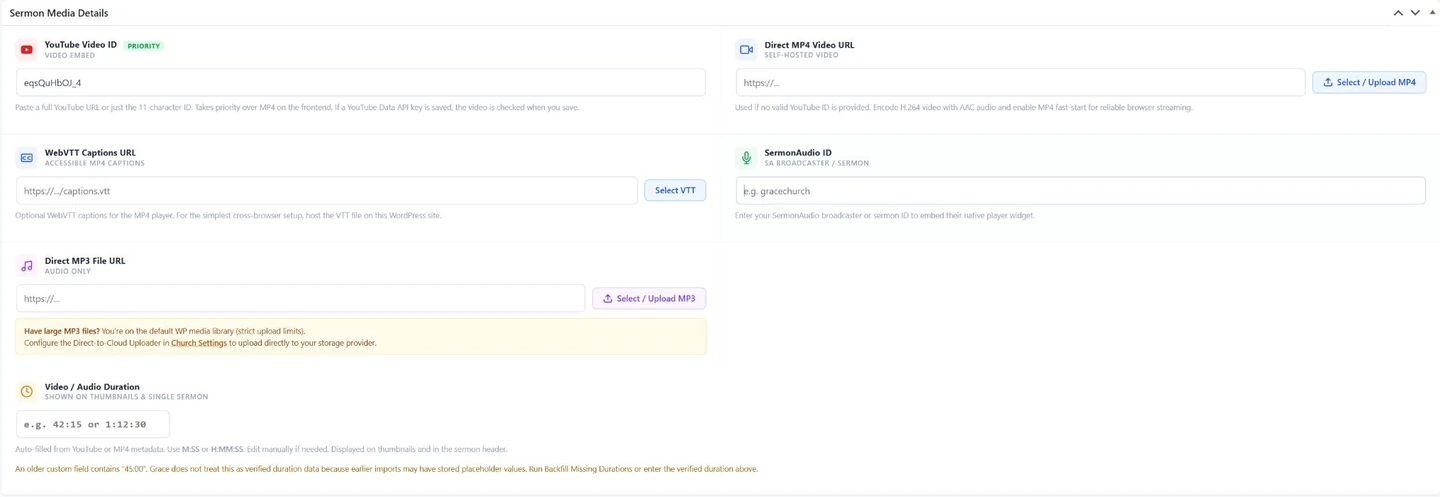
- YouTube is the first-priority video field.
- Enter a SermonAudio ID here.
- Use this field for a direct MP3 recording.
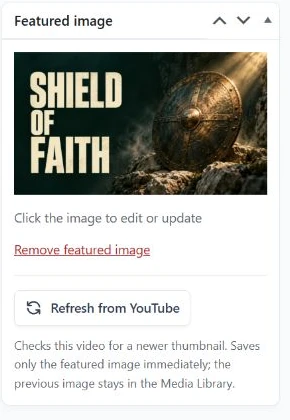
- Check this one saved video for a changed thumbnail.
Fetch an updated YouTube thumbnail
On a sermon with a saved YouTube video, choose Refresh from YouTube in the Featured image panel. This checks that video's current thumbnail and saves the featured image immediately; the previous image remains in the Media Library.
This is separate from a full library thumbnail check and does not generate AI artwork.
Self-Hosted MP4 Checklist
- Encode video as H.264 with AAC audio and enable MP4 fast-start (the metadata must be at the beginning of the file).
- Serve the file over HTTPS from a host or CDN that supports byte-range requests. Do not use a private bucket URL.
- Use the Direct-to-Cloud uploader for large MP4 files. The Cloud Storage tab provides a copy-ready CORS policy for uploads and playback.
- Add captions as a
.vttfile. Hosting captions in the WordPress Media Library provides the most reliable cross-browser behavior. - Use the existing Chapters field with one timestamp per line, for example
12:30 The Main Point. Chapters work with both YouTube and MP4 playback.
View Tracking (Optional)
Navigate to Sermons > View Tracking to enable the metrics your church wants to use. Everything is off by default.
- Site plays: A play qualifies after 10 seconds of continuous YouTube, MP4, or MP3 playback. Only one aggregate number is stored per sermon; no IP addresses, user agents, or personal viewing histories are saved.
- Public site-play display: Enable this separately if visitors should see the count on individual sermon pages. Logged-in administrator and editor traffic is excluded by default.
- YouTube views: Choose manual or daily synchronization and add a restricted YouTube Data API key. The key stays on the WordPress server and is never included in frontend markup.
- Public YouTube display: YouTube's reported count is labeled separately from site plays and is never added to the church's local number.
- Data freshness: Cached YouTube statistics older than 30 days are hidden and removed automatically. Turning synchronization off or deactivating Grace Church Core removes the cached YouTube data.
Use SermonAudio or an MP3
Enter the broadcaster or sermon ID in SermonAudio ID, not a navigation menu item. A saved YouTube video or MP4 takes priority, so remove an unwanted higher-priority source only after confirming that it is not the intended player. For audio-only media, use Direct MP3 File URL and set a licensed featured image if desired.
A valid format is not a remote playback guarantee. Preview the actual public page. A WordPress post password does not protect a public YouTube recording or a directly accessible upload.