Which job do you need?
- Existing sermons are ordinary Posts: use Keep URLs to preview conversion.
- Existing Sermons have old video fields: use Connect Videos to fill empty Grace player fields.
- You want new channel uploads: use Automatic Imports; that is a separate workflow.
- Import new uploads from a channel.
- Keep existing URLs when converting Posts.
- Connect legacy video fields on existing Sermons.
Keep URLs: convert sermon Posts
Review the Posts, confirm your backup, and preview the selection before conversion. The tool changes the post type in place, preserving IDs, content, and supported original URL paths. Unsupported or conflicting paths are blocked, not silently renamed. Converted sermons leave the ordinary blog list.
Connect Videos: reuse saved YouTube fields
Choose Find my video fields or enter an exact source field name. Select one field, preview counts and sample matches, then Populate. Only empty Grace YouTube fields on published Sermons are filled. Existing Grace players, invalid IDs, and conflicting values are skipped. Original source fields, URLs, and thumbnails remain unchanged. The tool does not verify that a video is public or playable.
Detailed limits, duplicate cleanup, and migration verification
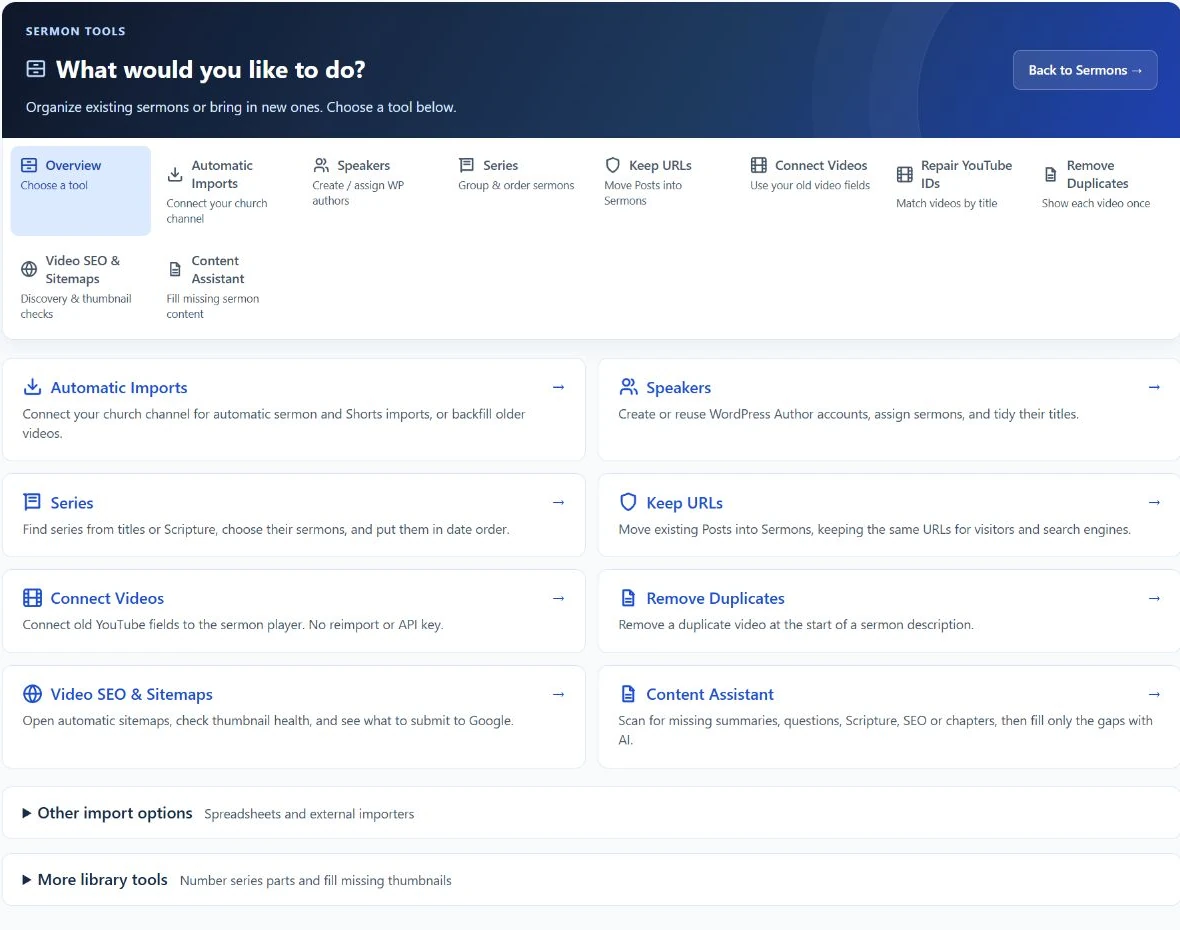
Open Sermons > Sermon Tools for all setup and cleanup tasks. The tabs explain each job: Speakers assigns preachers from title text; Keep URLs moves existing Posts into Sermons; Connect Videos fills empty player fields; Remove Duplicates removes an extra leading video. Each starts with a read-only scan or preview. Import new sermons and other library tools are expandable sections on Overview. Existing links to the older screens still work.
- Import new uploads from a channel.
- Keep existing URLs when converting Posts.
- Connect legacy video fields on existing Sermons.
Clear next action (Core 1.5.6): After Auto-detect, click Select & preview on a detected field to select it and start a read-only preview immediately. Alternatively, enter the field name and click Go — preview matches. The selected source is shown explicitly; example text is never presented as an already selected field. Nothing is populated until you confirm the preview.
Optional duplicate-video cleanup (Core 1.5.6): After videos are populated, open Sermons > Sermon Tools > Remove Duplicates, also linked from Sermon Tools and Populate Video Fields. Scan and preview, review sample before/after content, then click Remove. The tool removes one standalone leading YouTube URL, URL-only paragraph/link, basic [embed] shortcode or uncaptioned YouTube block only when its video matches the physically saved Grace player field. Everything after that prefix is kept byte-for-byte. Other videos, links later in the description, captions, playlists, timestamped links, unsupported HTML/iframes, regular Posts and unpublished content are left alone. Convert sermon Posts first. Each original is saved in protected sermon metadata before any change. Preview restore restores only descriptions that still match their cleaned copies, never overwriting later edits. Backups remain after restore. Content-only changes preserve post IDs, titles, dates, slugs, all other fields and original URLs. The tool does not reimport videos, call YouTube, or run general content-normalization/save handlers. It supports up to 10,000 published sermons and skips descriptions over 2 MB. Keep a separate database backup, test on staging, and clear the page cache afterward if needed.
Connect existing YouTube videos (Core 1.5.5): In Theme Setup, choose Connect existing sermon videos, or open Sermons > Sermon Tools > Connect Videos. The Sermon Tools and conversion screen link to it too. Click Find my video fields to find likely YouTube/video custom fields (including youtube_video_id), or enter the exact source field name yourself. Select one field, preview the counts and sample matches, then click Populate. Only empty Grace YouTube fields on published Sermons are filled, including explicitly saved blanks. Existing Grace YouTube, MP4 or SermonAudio players are skipped. Invalid IDs and conflicting values are reported and left alone. The source fields, posts, URLs and thumbnails remain unchanged. No API key or reimport is needed. Progress reflects processed batches; a completion panel reports filled, changed-since-preview and failed counts. If interrupted, preview again to check the remaining empty fields. This tool supports libraries up to 10,000 published sermons; convert sermon Posts using Preserve Existing URLs first. It does not inspect arbitrary page content, import MP4/audio fields, or verify that a YouTube video is public/playable. Back up and test on staging first, then check playback.
Switching themes on the same WordPress site does not require exporting and re-importing existing posts. Leave the domain and Settings > Permalinks unchanged. Back up the database and test a full copy on staging first.
Theme Setup > Are your sermons saved as Posts? > Review Posts for conversion links to Sermons > Preserve Existing URLs. If all Posts are sermons, choose Preview all published Posts as Sermons; otherwise select up to 20 individually. The all-Posts tool checks the entire selection before confirmation, then converts in batches of 20 with progress and resume support (up to 10,000 published Posts). Drafts, private posts and posts created after the preview are excluded. Conversion changes the post type in place and retains IDs, slugs, dates, content, comments and metadata. The original URL path remains the permalink, even when it contains a date or category. Unsupported URL formats, duplicate sermon slugs and changed previews are blocked; nothing is renamed automatically. This is not an importer for another installation or another plugin's custom post type.
The URL mapping is stored in the database by Grace Church Core, which must stay active even after changing themes. If an existing page occupies the sermon archive address, Core chooses an unused sermon-library address for its archive; it does not replace that page or rewrite existing sermon links. The selected archive address stays stable.
Use your existing /sermons/ page: Go to Pages, edit that page, choose the Sermon Library template, and click Update. Grace displays its responsive sermon grid, filters and Load More control at the same page address. The page's old body is stored unchanged but not displayed by this template; switching back restores its ordinary display. Theme-generated library links now use this page, and the alternate archive redirects to it. Individual sermon URLs and archive feeds are unchanged. Choose only one public library page; if several are assigned, the oldest published, non-password-protected one is used for library links. Removing the template restores the separate archive.
Migration status (Core 1.5.2): The preview stops at Ready for your confirmation until you check the backup/sermon confirmation and click Convert Posts to Sermons. A green Conversion complete panel reports the count and provides Open Sermon Library and Manage Sermons links. Media warnings remain visible because URL conversion does not verify playback. Do not rerun a completed conversion.
Before production rollout, compare a complete list of old URLs against staging: each must resolve to the same content with an HTTP 200 and the intended canonical URL. Also check media playback, shortcodes, menus, feeds, taxonomy/date/author archives and the SEO plugin's sitemap/index. Core reads common legacy YouTube, MP4 and MP3 fields for converted sermons without changing the originals; explicitly saved Grace media fields take priority. Unrecognized or conflicting fields need manual review. Existing category associations are kept but are not automatically remapped into sermon books, series or speakers. Converted posts move out of the normal blog list. Core provides URL continuity, not a guarantee of search rankings. Keep a pre-migration database backup for rollback. If a batch request fails, reload its page to check saved progress and confirm again to resume; completed records are not duplicated. A persistent lock requires inspection before another run.
Open Sermons > Sermon Tools to organize, import, or repair the library. Theme Setup provides one shortcut here; Automatic Imports appears once in the tools overview. Other import options and library repairs are collapsed until needed.
You can also open Sermons > Sermon Tools without Grace Video active. Imports are published, not drafts. Test a small batch on staging and keep a backup. CSV columns, in order, are Title, Content, Date, Video URL, Audio URL; include one header row. Dates must be YYYY-MM-DD or YYYY-MM-DD HH:MM:SS. Maximum upload size is 5 MB. Reimporting a CSV may create duplicates.